Scheduling Domain Blocks for Device Groups with Pi-hole
The Pi-hole is one of the most useful projects that can be deployed within a home network. While some prior knowledge is needed to setup, there is so much documentation with makes the deployment of this a simple and quick experience.
With so many ads being present on website, this project cleans-up your internet experience. DNS traffic is filtered through the device and can aid in the blocking of these ads along with the option to create/pull from custom block lists.
Something that I have wanted to explore is the option to schedule when a block is added/removed. There is already great resources for this which can be found in References but I wanted to go through and document my experience as well.
Process
-
Create a list of domains that are intended to be blocked. This can be placed on a public GitHub repository. An example of this type of file can be found here. An example is below as well:
0.0.0.0 www.cnn.com 0.0.0.0 www.foxnews.com 0.0.0.0 www.reddit.com -
Create a new group by navigating to “Groups” or the path
https://pihole.local/admin/groups. -
Add devices by their MAC address to this group using the “Clients” dashboard (
https://pihole.local/admin/groups/clients).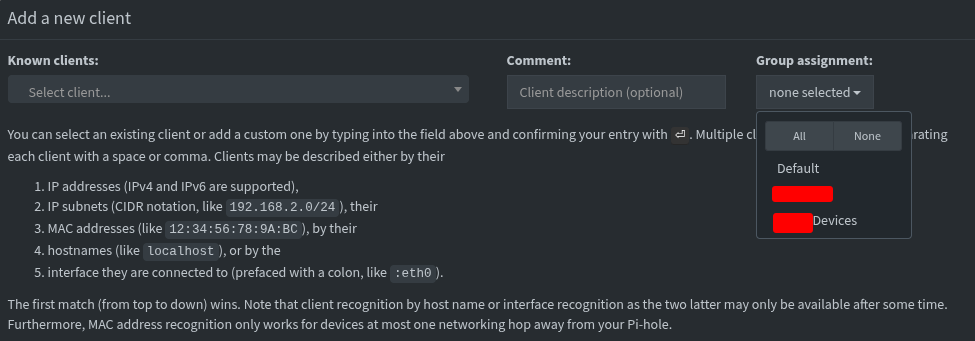
You may want to add the device to “Default” and the new group created so that ads will continue to be blocked along with your scheduled blocks.
-
Add a new block list at
https://pihole.local/admin/groups/listswhich points to the custom list created earlier. Assign the list to the group created in earlier steps. You will likely not want to include default here as it would impact other devices.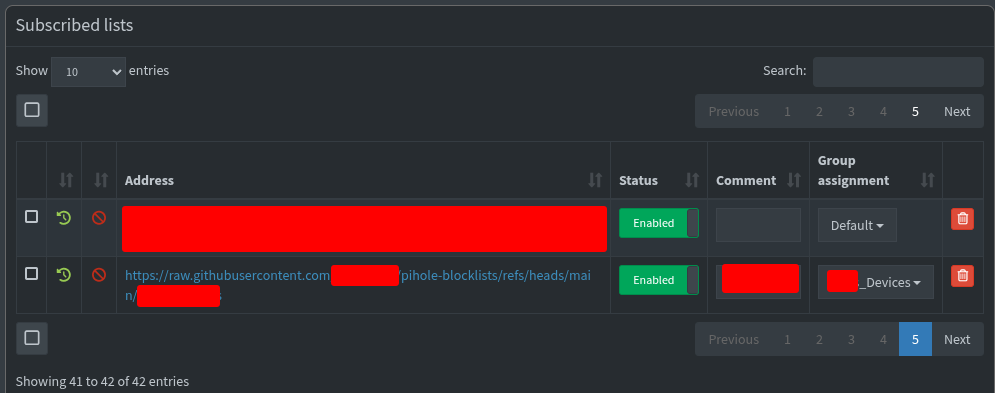
-
SSH into your RaspberryPi and pull the contents for the blocklists.
ssh pi@pihole.local pihole -g -
Install
sqlite3which will be used to interact with the Pi-hole database.sudo apt install sqlite3 -y -
In order to schedule when a blocklist is enabled/disabled the SQLite database used will be manipulated. To do so, the ID of the blocklist is needed. Two options can be used to find this ID.
-
Navigate to
https://pihole.local/admin/groups/listsand find the blocklist added. Click on the “🚫”. The value “Database ID” is what will be used.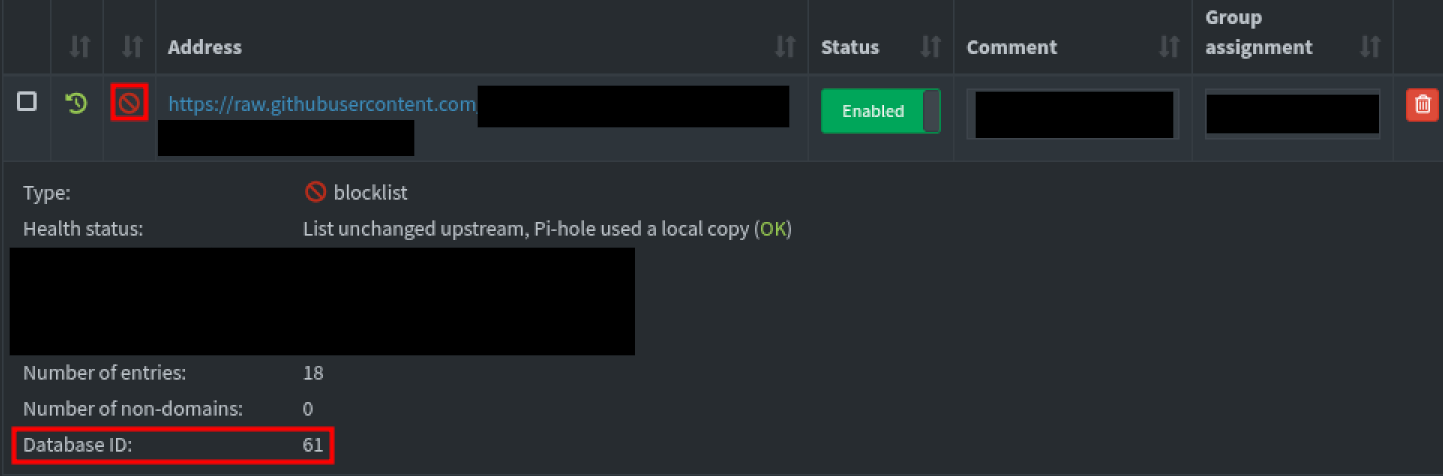
-
View the ID directly from the database.
sqlite3 /etc/pihole/gravity.db/*Swap "custom_repository" with a unique string from the repository you are using*/ .tables select * from adlist where address like '%custom_repository%'; .quit
-
-
With the ID of the blocklist that is intended to be used collect, the script to facilitate the database changes can be created.
touch /home/pi/block-tool.shWithin the file
block-tool.shthe following content is added.#!/bin/bash export PATH="$PATH:/usr/sbin:/usr/local/bin/" blocklist="$2" if [[ "$1" == "block" ]]; then echo "[+] Block sites..." sudo sqlite3 /etc/pihole/gravity.db "update adlist set enabled = true where id = ${blocklist};" elif [[ "$1" == "unblock" ]]; then echo "[+] Unblocking sites..." sudo sqlite3 /etc/pihole/gravity.db "update adlist set enabled = false where id = ${blocklist};" else echo "[!] Unknown option." fi sudo pihole reloaddns -
Using
chmodthe script will be made executable.chmod +x /home/pi/block-tool.shThis script accepts to arguments, either block/unblock and the ID of the adlist. An example execution would be
./block-tool.sh block 61. -
Last step is to create 2 cronjobs, one to enable the block and one to disable on the chosen schedule. A tool which can assist in setting this schedule is Cronitor. Execute
sudo crontab -eand create new jobs. Example below:# At 07:00 on Saturday 0 7 * * 6 bash -lc "/home/pi/block-tool.sh block 61" # At 00:00 on Sunday 0 0 * * 0 bash -lc "/home/pi/block-tool.sh unblock 61"Cron will use the timezone configured on the device, to check this use
timedatectl. -
At this point everything can be configured, modified, and added to at your choosing. Domains will be blocked and unblocked on schedule for specific devices.
References
- https://thegreata.pe/articles/2021/02/28/pihole/